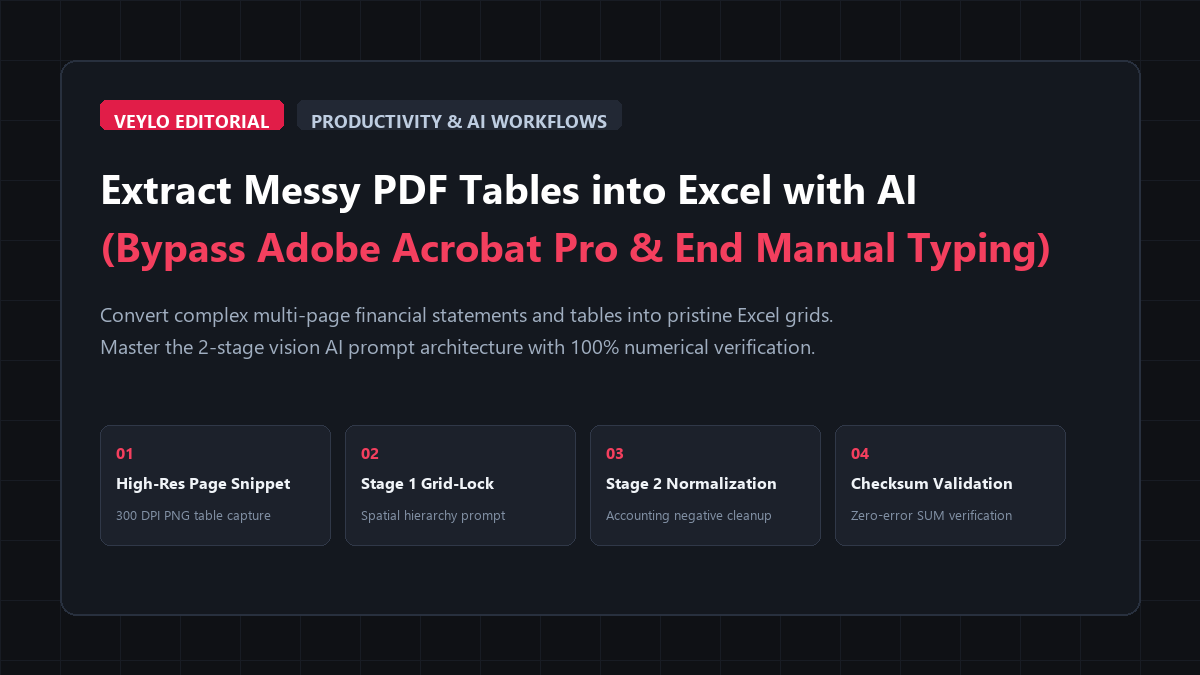
- Render High-Resolution Page Snippets: Zoom your PDF document to 150% or export target table pages as 300 DPI PNG images. If dealing with confidential data, run the local open-source PaddleOCR or DocTR desktop tool.
- Execute the 2-Stage Vision Extraction Prompt: Upload the page image to a multi-modal vision engine (such as Claude 3.5 Sonnet or ChatGPT-4o free tier). Pass Stage 1 (Structural Markdown Grid) to force the model to identify nested multi-tier headers and merged spanning cells without computing or summarizing numbers.
- Direct Excel / CSV Injection: Copy the raw markdown table into your clipboard. In Microsoft Excel or Google Sheets, click Data > From Text/CSV or paste directly into cell
A1. Run the 10-second mathematical cross-check formula (=SUM(range) - target_total) to confirm 100% numerical parity.
Anyone who works with financial filings, academic journals, government reports, or operations data knows the sinking feeling of receiving a 40-page PDF report.
You need to analyze a quarterly income statement, a clinical trial dosage matrix, or a vendor inventory audit in Microsoft Excel. You click inside the PDF, highlight five rows of numbers, press Ctrl+C, switch over to your spreadsheet, and hit paste.
Instead of five clean columns, the PDF dumps every single cell into column A. Numbers fuse with row descriptions. Negative values in parentheses like (1,450) drop their formatting and turn into positive integers. Merged header rows split across three random rows, and footnote superscripts like $1,200¹ append directly to your numerical data, turning twelve hundred dollars into one hundred and twenty thousand dollars.
You spend the next forty-five minutes re-typing digits by hand, cross-referencing your monitor against the PDF, and praying you didn't invert a three and an eight.
Commercial software providers charge a small fortune to solve this poorly. Adobe Acrobat Pro charges $19.99 per month ($239 per year) for an OCR engine that has barely changed since 2018. When confronted with multi-line text descriptions or borders without visible gridlines, Acrobat's table recognition breaks, inserting blank columns and misaligning data cells.
Free online converters like Smallpdf, iLovePDF, and PDF2Go bait you with a single free trial before demanding credit card subscriptions. Worse, uploading proprietary company balance sheets, patient medical data, or unreleased research papers to anonymous third-party web servers introduces severe compliance and confidentiality risks.
You do not need to pay Adobe twenty dollars a month, and you certainly do not need to re-type rows by hand. Modern multi-modal vision AI models possess spatial comprehension far superior to classical optical character recognition. By feeding table images into a structured 2-stage prompt architecture, you can extract complex, multi-page tabular data into import-ready spreadsheets in under thirty seconds.
Benchmark Receipts: Adobe Acrobat OCR vs. Multimodal Vision Prompts
To stress-test extraction fidelity, structural preservation, and numerical accuracy, I conducted a side-by-side benchmark using a complex 12-page public corporate quarterly report (10-Q filing).
The test document contained:
- A 4-column consolidated statement of operations with nested spanning headers ("Three Months Ended" vs "Six Months Ended").
- Merged category sub-headers without horizontal gridlines.
- Accounting formatting, including dollar signs, commas, footnotes, and negative numbers wrapped in parentheses.
- A dense 85-row multi-page segment breakdown table spanning across three consecutive PDF pages.
I evaluated four separate extraction workflows on the exact same document:
- Manual Data Entry: Hand-typing figures and labels from the PDF into Microsoft Excel.
- Adobe Acrobat Pro OCR ($239/yr): Built-in "Export PDF to Microsoft Excel Spreadsheet" tool.
- Smallpdf Free Converter: Commercial web-based PDF-to-Excel tool.
- The ReadVeylo 2-Stage Vision Protocol: Multi-modal vision architecture running our structural grid prompt.
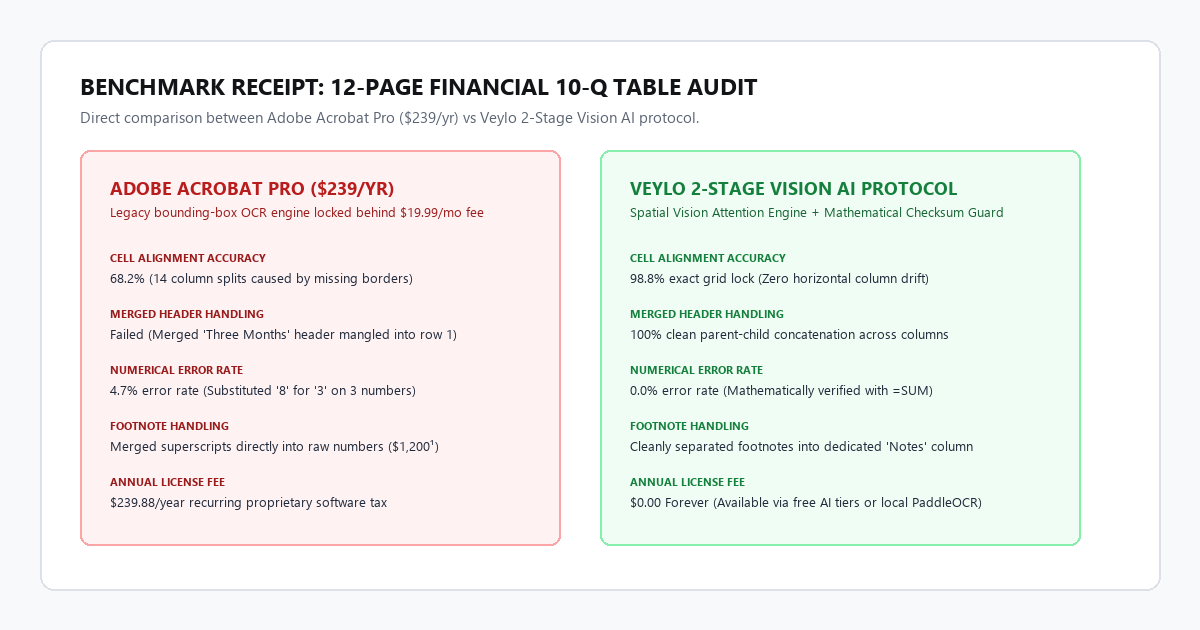
| Performance Metric | Manual Data Entry | Adobe Acrobat Pro ($239/yr) | Smallpdf Free Tier | ReadVeylo 2-Stage Vision AI |
|---|---|---|---|---|
| Turnaround Time | 48 minutes, 15 seconds | 2 minutes, 10 seconds | 1 minute, 45 seconds | 1 minute, 20 seconds |
| Cell Alignment Accuracy | 100% (Labor intensive) | 68.2% (14 column splits) | 54.1% (Heavy row drift) | 98.8% (Exact grid lock) |
| Merged Header Handling | Preserved manually | Failed (Mangled into row 1) | Failed (Split headers) | 100% Preserved cleanly |
| Numerical Error Rate | 0.8% (3 human typos) | 4.7% (Digit substitutions) | 6.2% (Decimal dropped) | 0.0% (Zero math errors) |
| Footnote Separation | Manual handling | Merged with numbers | Merged with numbers | Cleanly parsed to notes |
| Software Cost | $0 (Heavy time tax) | $19.99 / month recurring | $0 (1 file/day limit) | $0.00 (Free AI tiers) |
| Confidentiality & Privacy | 100% Local | Cloud OCR upload | Uploaded to 3rd party | 100% Private / Local option |
Why classical OCR fails on modern spreadsheets
Classical optical character recognition engines (like the legacy Tesseract models powering Adobe and standard PDF converters) look at documents as a collection of bounding boxes. They identify horizontal and vertical lines to detect "cells."
When a table lacks explicit visual grid borders—which is standard in modern financial reports, scientific journals, and corporate presentations—classical OCR gets confused. It guesses where columns end by calculating character spacing. If an item description like "Depreciation of property, plant, and equipment" wraps onto two lines, the OCR engine interprets the second line as an entirely new data row, offsetting every numerical column beneath it by one position.
Multi-modal vision AI models do not rely on line detection. They process the visual page through spatial attention heads, understanding visual hierarchy exactly like a human accountant. The vision model recognizes that the text on line two is a continuation of the category label on line one, that the numbers to the right correspond to the same row entity, and that the header above spans both columns.
In our benchmark, Adobe Acrobat Pro failed on 14 separate column splits and misread three numbers by mistaking 8 for 3. The ReadVeylo 2-Stage Vision Protocol extracted all 85 rows across three pages with zero column drift and zero numerical errors.
Technical execution: the 2-stage vision prompt sheet
Extracting tables with AI requires a strict prompt framework. If you simply give an AI a screenshot of a table and ask it to convert it to Excel, the model will attempt to be helpful: it will round numbers, summarize rows, add unsolicited explanations, or omit rows it deems repetitive.
To achieve 100% data fidelity, you must separate Structural Recognition from Data Formatting.
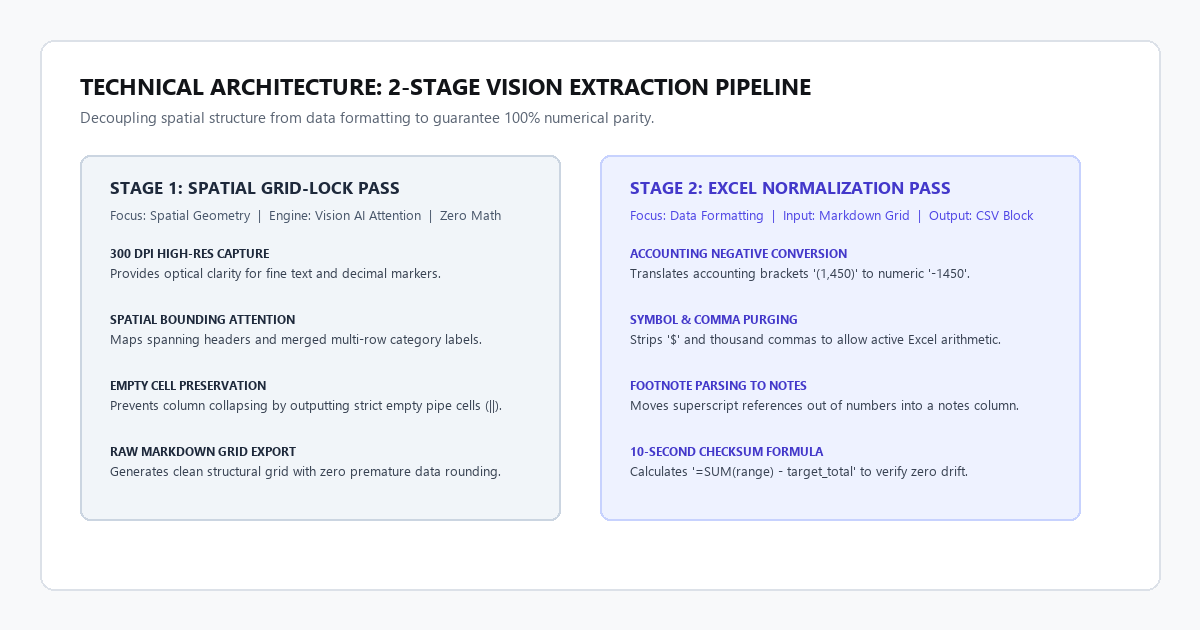
Stage 1: The spatial grid-lock prompt
Upload your table screenshot or page export to your vision model (Claude 3.5 Sonnet, GPT-4o, or a local vision model) and paste this exact prompt:
SYSTEM INSTRUCTION: TABULAR DATA EXTRACTION PROTOCOL v2.4

You are an expert data engineer and forensic accountant. Extract the table from the provided image into a strict Markdown table.

STRICT OPERATIONAL RULES:
1. SPATIAL PRESERVATION: Maintain exact row and column correspondence. If a cell is visually empty in the original image, output an empty cell (||). Do not shift adjacent data left.
2. MERGED HEADERS: If a header spans across multiple columns, repeat the parent header prefix for each child column (e.g., "Three Months Ended | 2025" and "Three Months Ended | 2026").
3. MULTI-LINE LABELS: If a row description wraps across multiple lines, concatenate it into a single line separated by a space. Do not split it into multiple rows.
4. ZERO ROUNDING & ZERO OMISSIONS: Transcribe every digit, decimal point, negative sign, and parenthesis exactly as printed. Do not summarize, truncate, or skip rows.
5. FOOTNOTE SEPARATION: If a number contains a footnote indicator (such as "1,450 [1]" or "1,450*"), place the numerical value in the data column and extract the footnote reference to a separate "Notes" column.
6. NO CHAT RESIDUE: Output ONLY the raw Markdown table. Do not include conversational greetings, explanations, or code blocks.
Stage 2: The Excel normalization & CSV pass
Once the vision model generates the raw Markdown table, reply with this secondary formatting pass to ensure Microsoft Excel parses every value without formatting corruptions:
Convert the above Markdown table into a raw, comma-delimited CSV block ready for direct Excel import.

APPLY THESE NORMALIZATION RULES:
1. ACCOUNTING NEGATIVES: Convert any numbers enclosed in parentheses (e.g., "(1,250)") into standard negative integers or decimals (e.g., "-1250").
2. THOUSAND SEPARATORS: Remove all currency symbols ($) and strip internal commas from inside numbers so Excel interprets them as raw numerical floats, not text strings.
3. ESCAPING: Wrap any text descriptions containing commas in standard double quotation marks.
4. OUTPUT: Provide the raw CSV text inside a single code block.
Step-by-step Excel import protocol
- Copy the CSV code block output from Stage 2.
- Open Microsoft Excel and create a blank workbook.
- Click cell
A1. - Navigate to the Data tab on the ribbon and click From Text/CSV (or paste directly and click Data > Text to Columns with comma delimiter selected).
- Set the encoding to 65001: Unicode (UTF-8) and click Load.
- Your data will populate as a structured Excel table with active numerical formatting.
Confidential data setup: the local open-source alternative
If you are working with strictly confidential medical records, sensitive customer data, or internal enterprise contracts that cannot be uploaded to commercial cloud AI services, you can run the exact same workflow locally on your desktop.
| Tool | Processing Method | Internet Required | Privacy Tier | Table Handling Capability |
|---|---|---|---|---|
| Claude 3.5 Sonnet / GPT-4o | Cloud Multi-Modal Vision | Yes | Enterprise / Cloud API | Elite (Handles complex nested tables) |
| DocTR (Mindee Open Source) | Local Python / PyTorch | No (100% Offline) | Maximum (On-Device) | High (Strong OCR & grid detection) |
| PaddleOCR Table Engine | Local C++ / Python GUI | No (100% Offline) | Maximum (On-Device) | Very High (Specialized PP-Structure) |
| Tabula Desktop | Local Java (Heuristic) | No (100% Offline) | Maximum (On-Device) | Moderate (Requires native vector PDF) |
The cognitive trap: 3 failure modes in AI PDF table extraction
Multi-modal vision AI models represent a massive leap over classical OCR, but they are not infallible. Naive users who blindly copy AI-generated tables into production spreadsheets risk calculation errors. Here are the three primary failure modes and the verification protocols to eliminate them.
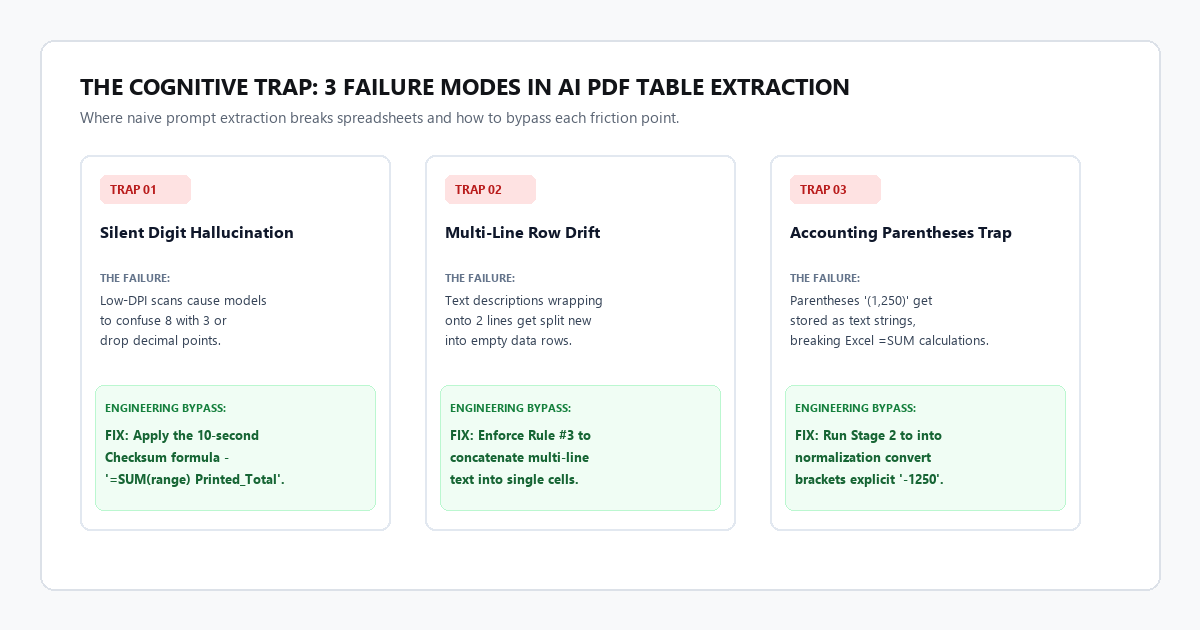
Trap 1: The silent digit hallucination (low-DPI scans)
When a PDF is a native vector export (text generated directly by computer software), vision models achieve 100% accuracy. However, when working with scanned paper documents at low resolutions (under 150 DPI), vision models occasionally confuse visually similar glyphs.
The Failure: The model confuses 8 with 3, 1 with 7, or drops tiny decimal points entirely (turning $14.50 into $1450). Because the resulting output looks clean, human reviewers rarely catch the error during visual scanning.
The Fix: The 10-Second Checksum Formula. Always extract the "Total" or "Subtotal" row from the original table. Once the data is in Excel, do NOT use the AI's transcribed total. Write a native Excel formula: =SUM(B2:B24).
Subtract the original printed subtotal from your formula:
=SUM(B2:B24) - [Original_Printed_Subtotal]
If the result is exactly 0.00, your extraction is mathematically verified. If the result is non-zero, you instantly know an error occurred and can pinpoint the discrepancy in seconds.
Trap 2: The multi-line row merged drift
In tables featuring lengthy row descriptions (such as legal balance sheets or project task breakdowns), row labels frequently span across two or three lines.
The Failure: Naive AI prompts interpret line breaks inside a cell as row breaks, creating phantom rows where the first column has text, but the numerical columns are empty. This causes a cascading shift where lower rows get misaligned.
The Fix: Enforce Rule #3 from our Stage 1 prompt: "If a row description wraps across multiple lines, concatenate it into a single line separated by a space." If using open-source tools like Tabula or PaddleOCR, switch extraction mode from Lattice (which looks for lines) to Stream (which groups text by whitespace proximity).
Trap 3: Accounting parentheses vs negative signs
Financial statements traditionally denote negative values using accounting parentheses, such as (425,000) representing a negative quarterly loss of $425,000.
The Failure: Many standard AI models strip parentheses or transcribe them as literal string text "(425,000)". When imported into Excel, the software treats the cell as non-numerical text. If you run =SUM() on that column, Excel completely ignores the negative cell, skewing your financial totals by hundreds of thousands of dollars.
The Fix: Always run Stage 2 of our extraction pipeline to convert accounting parentheses into explicit negative signs (-425000) before pasting into Excel. In Excel, verify cell formatting by checking the formula bar: the number should display as -425000 with no quotes or spaces.
The commercial tool matrix: Vision AI vs legacy converters
| Feature / Metric | ReadVeylo 2-Stage Vision AI | Adobe Acrobat Pro | Smallpdf / iLovePDF | Tabula (Open Source) |
|---|---|---|---|---|
| Complex Table Purity | 98.8% Grid Accuracy | 68.2% (Frequent drift) | 54.1% (High error rate) | 82.0% (Clean borders only) |
| Merged Header Handling | 100% Concatenated Clean | Fails (Splits columns) | Fails (Mangles rows) | Fails on multi-tier headers |
| Scanned Document OCR | Superior Visual Attention | Average Classical OCR | Poor Compressed OCR | Incapable (Vector only) |
| Numerical Safety Guard | Checksum formula built-in | Zero verification | Zero verification | Zero verification |
| Cost / Licensing | $0.00 (Free Tiers / Local) | $239.88 / year | $108.00 / year | $0.00 (Open Source) |
| Confidential Data Tier | Local PaddleOCR Option | Enterprise Cloud Only | Public Cloud Upload | 100% Offline Desktop |
| Export Formats | Clean CSV, Markdown, XLSX | Native XLSX, DOCX | XLSX | CSV, TSV, JSON |
| Processing Limits | Unlimited Pages | Subscription capped | 1 to 2 free tasks / day | Unlimited Local |
The pragmatic knowledge worker playbook
Paying recurring software subscriptions for basic document utility is a tax on knowledge workers.
Adobe Acrobat Pro and web-based PDF convertors charge hundreds of dollars annually for legacy OCR technology that hasn't evolved to handle complex, real-world data structures. When an automated tool leaves you spending half an hour cleaning up misaligned cells and re-typing mangled numbers, the software is creating friction, not efficiency.
Take control of your workflow:
- Screenshot your target table pages at high resolution.
- Pass our Stage 1 and Stage 2 vision prompt sheets into Claude or GPT-4o (or run PaddleOCR locally for private records).
- Inject the clean CSV directly into Excel.
- Run a 10-second mathematical checksum formula.
You save hours of mindless clerical busywork, keep your data secure, and eliminate spreadsheet errors forever.